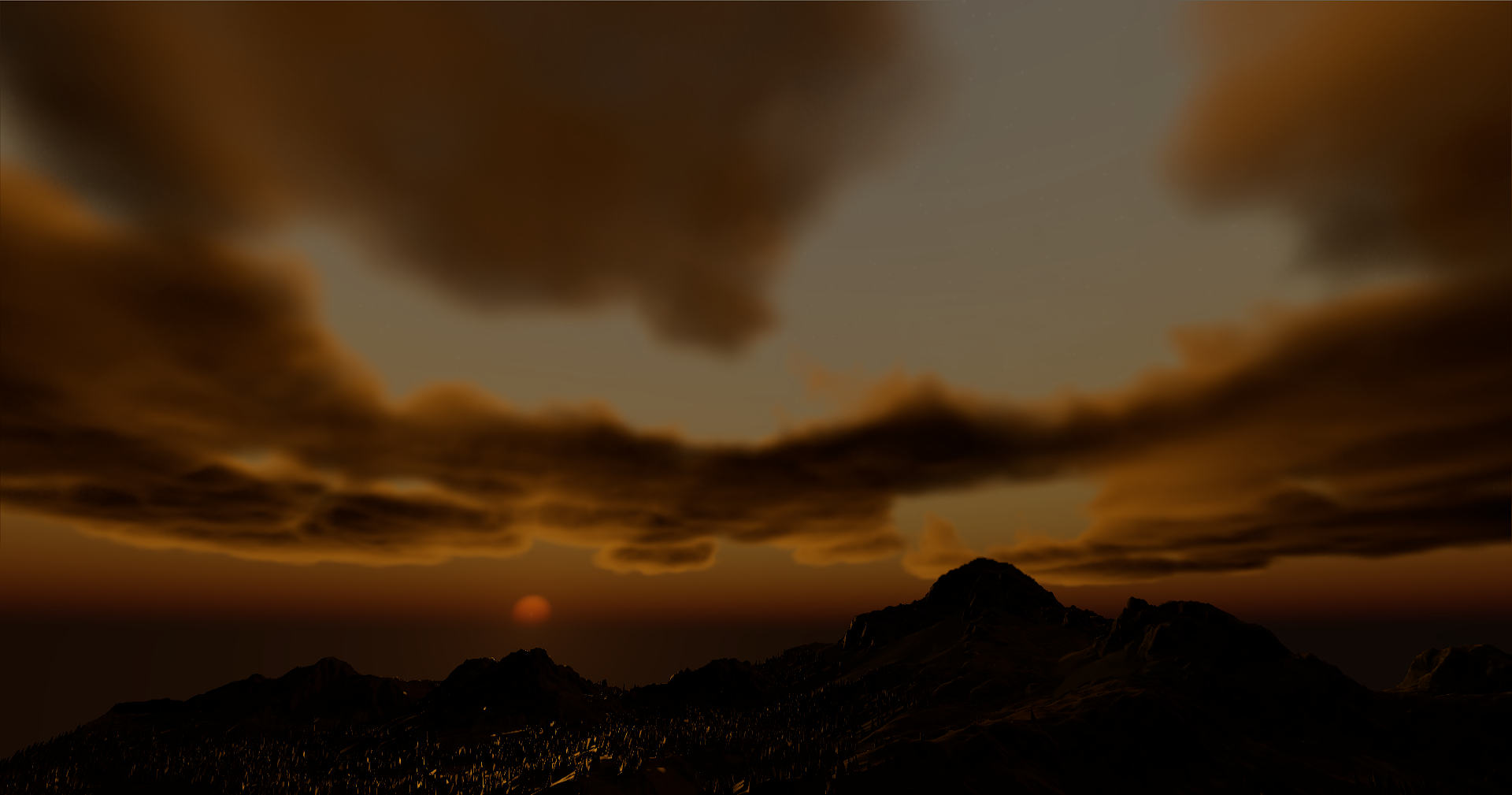
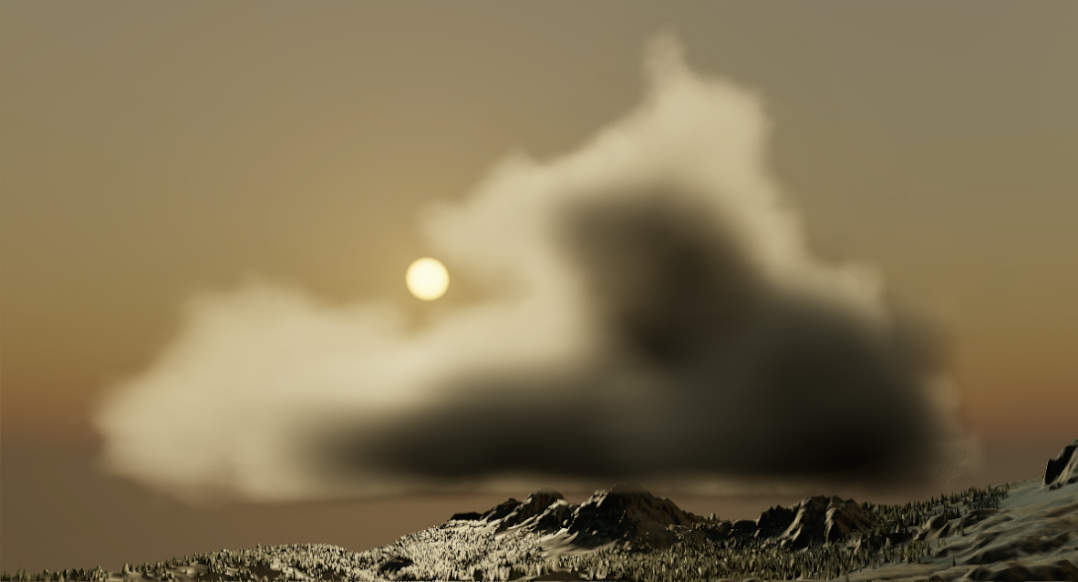
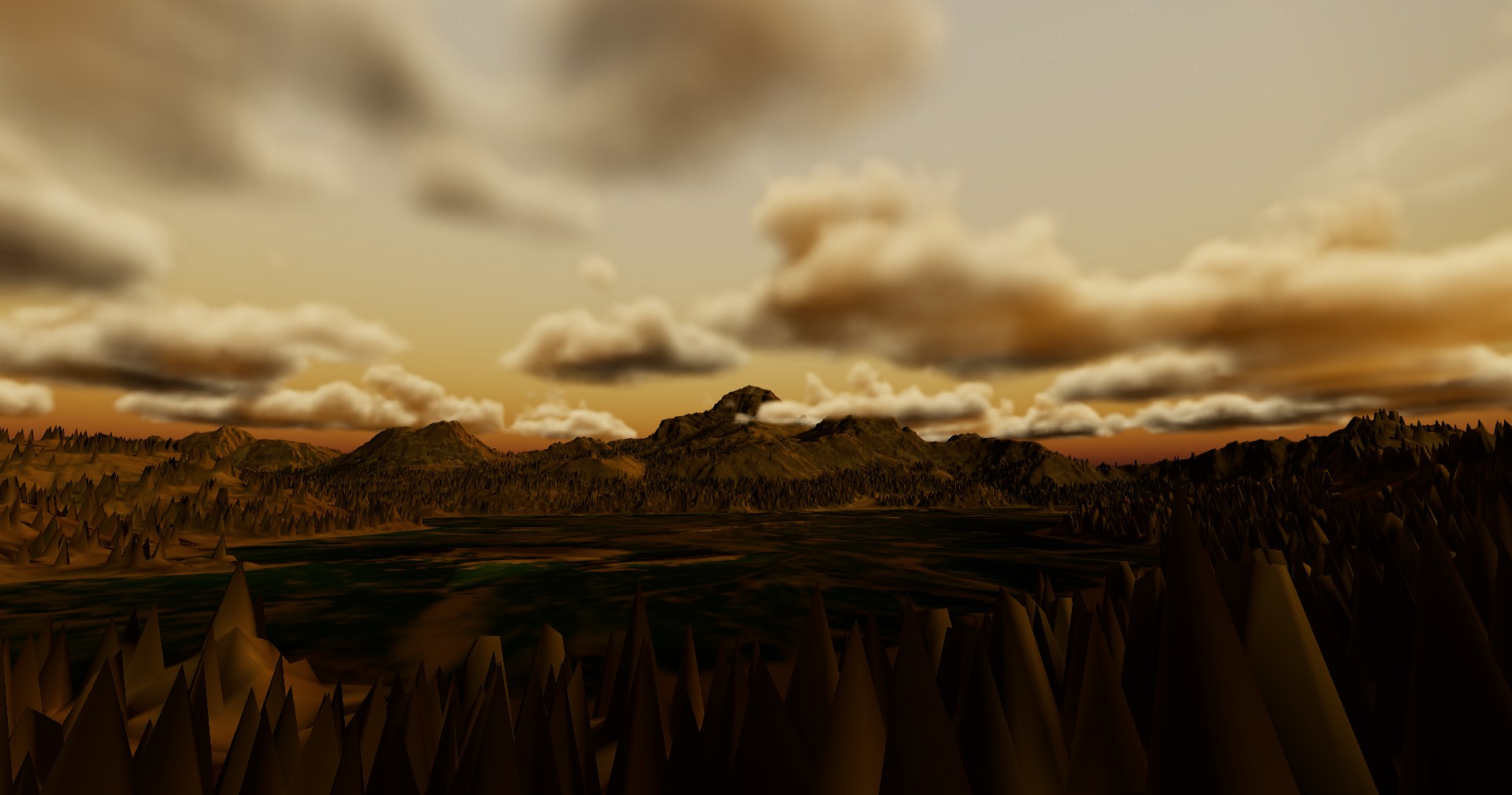
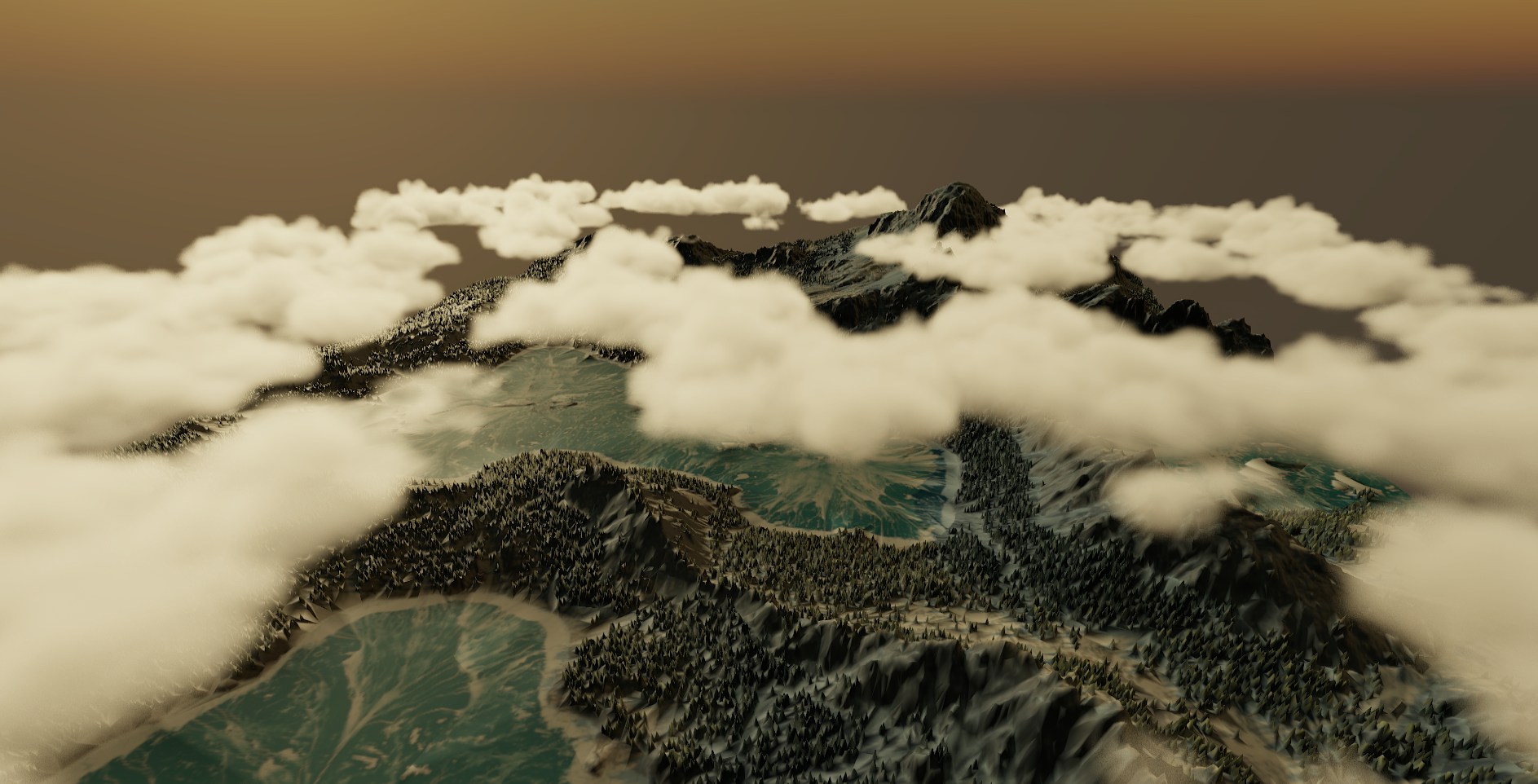
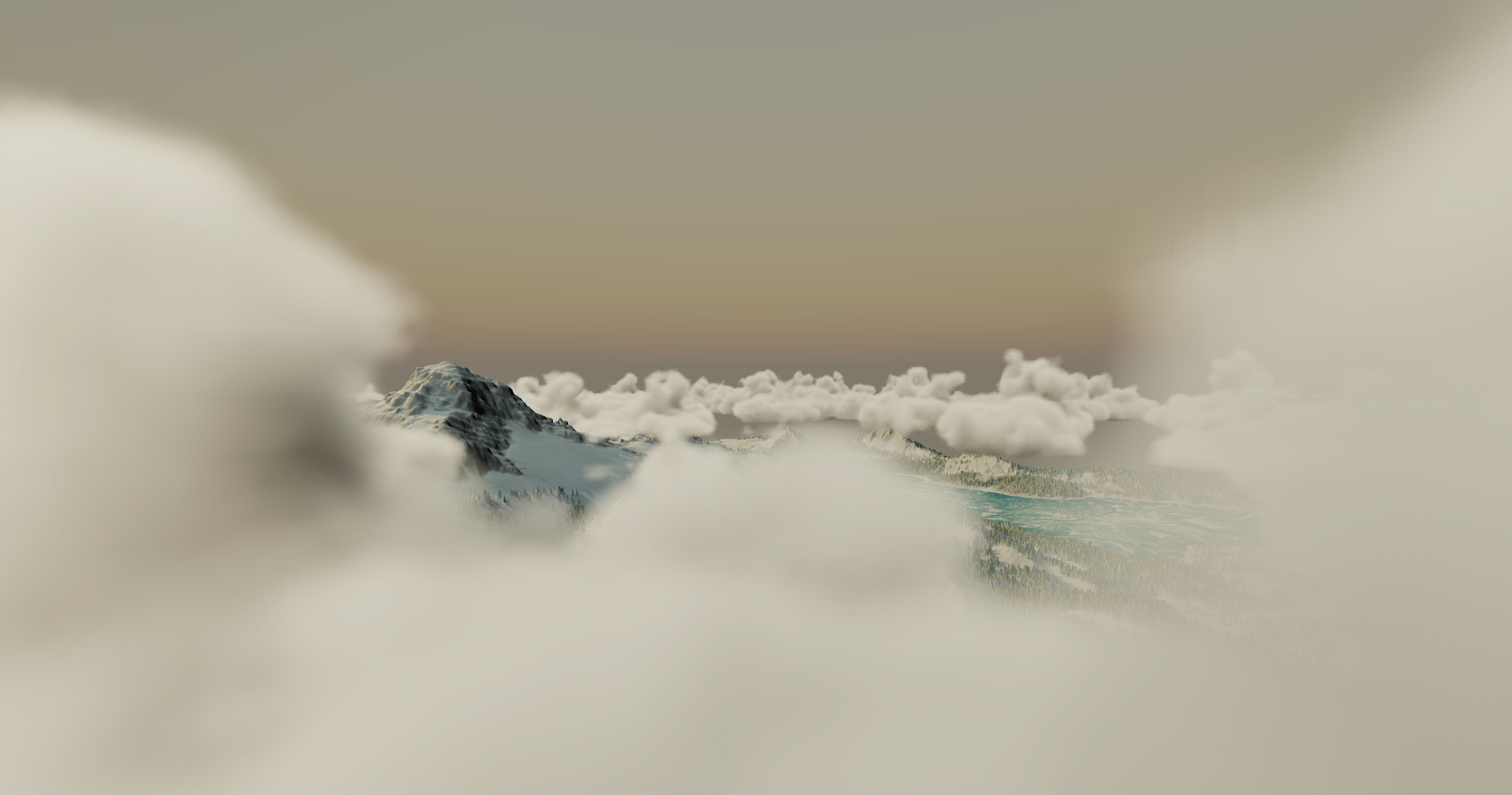
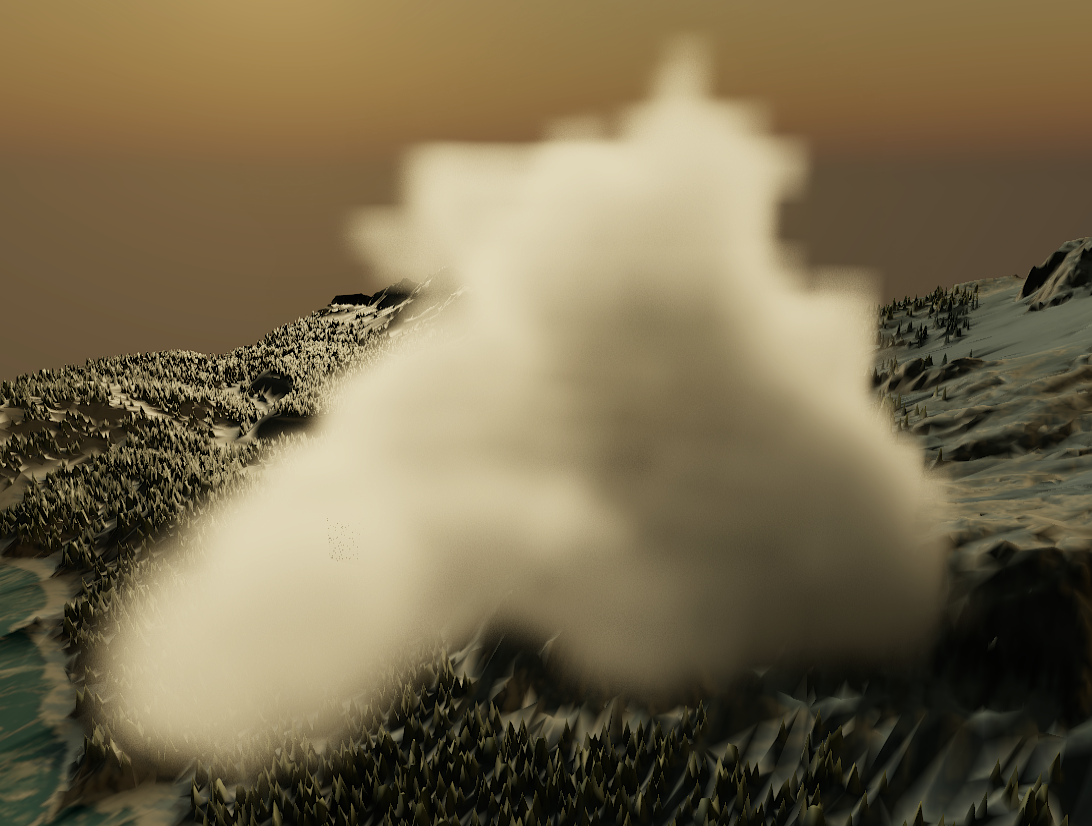
Volumetric Cloud Rendering

Implementing a voxel cloud renderer based on Nubis

Idea

There are a lot of techniques for rendering volumetrics in games.
In this article I'll cover specifically clouds,
and more specifically implementing a voxel technique based on Nubis, the system one talked about by Guerrilla Games (here).

Basic marching

Most volumetric renderers rely on ray marching, since it's a simple and relatively efficient way to sample heterogeneous volumes (volumes with non-constant density).
We'll also be using this as the basis for rendering our clouds.
If you're already familiar with the basics feel free to skip this section.

Basic marching explained

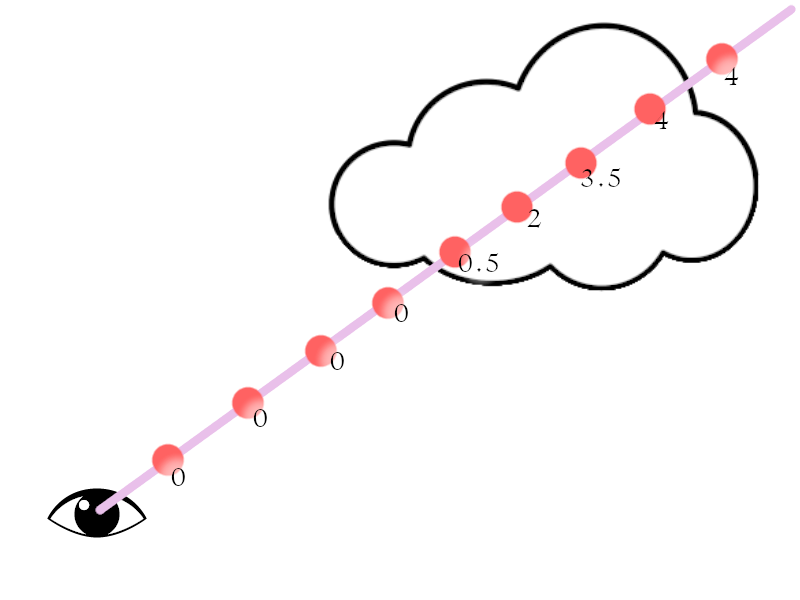
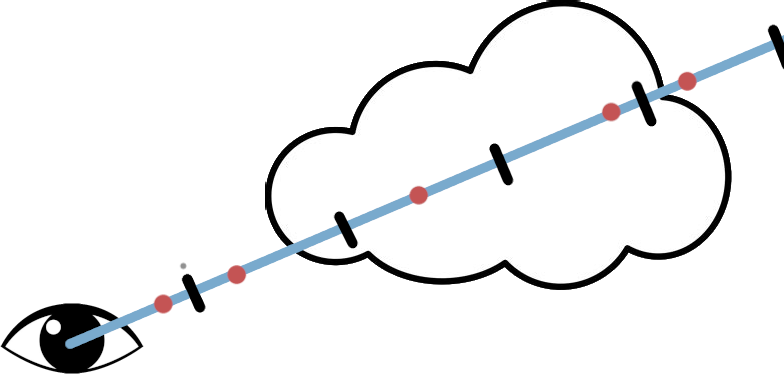
What Ray marching tries to achieve is finding the total density and lighting of a volume along a per pixel Ray. Since getting the exact result would be impossible to get in real time we approximate it by taking a set amount of steps/samples.

The march along the ray, number shows accumulated density

Ray marching illustration For every step along the Ray we sample the density of the volume and accumulate the total along the ray.
Since clouds can block light going through, we use this density to calculate how much light can pass through this volume, i.e. how transmissive it is.

Clouds do not only block light coming through but are also illuminated themselves, so we also calculate the lighting at every sample.
Keeping in mind that we need to take into account how much light is blocked by previous samples.

# Basic accumulation
# GLSL:	

float3 marchVolume(float3 rayOrigin, float3 rayDir, float3 backgroundColor) {
    float stepSize = MAX_DISTANCE / NUM_STEPS;
    float3 pos = rayOrigin;
    float totalDensity = 0.0;
    float3 light = float3(0.0, 0.0, 0.0);
    // Step along the ray
    for (int i = 0; i < NUM_STEPS; i++) {
        pos += rayDir * stepSize;
        float density = sampleDensity(pos);
        // Important to scale by stepsize since we're only sampling a single point
        totalDensity += density * stepSize;
        // Calculate how much light is blocked using Beer's law
        float transmissance = exp(-totalDensity);
        // Calculate lighting at this point, scale by amount blocked and density of this point.
        light += CalculateLighting() * transmissance * density * stepSize;
    }
    // The background behind the cloud is also passed light, so we also add it to the final lighting
    light += backgroundColor * transmissance;
    return light;
}
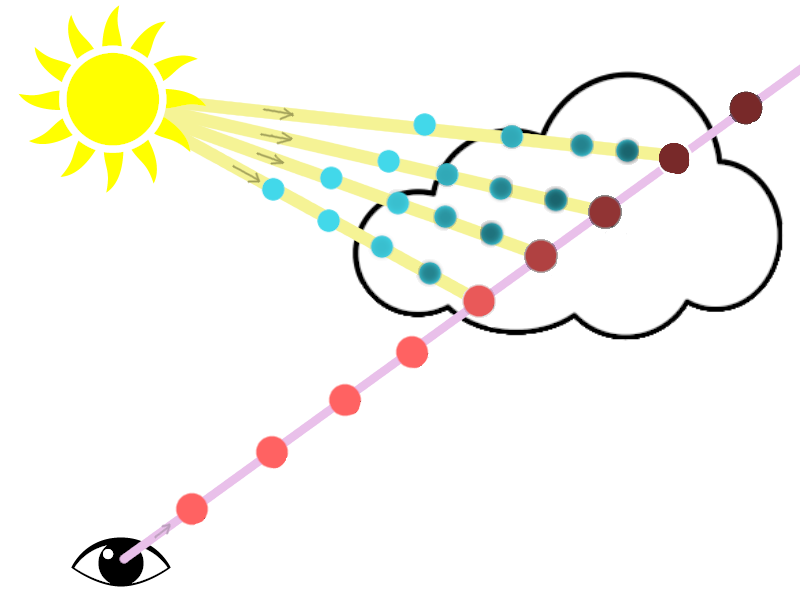
To calculate the light coming in at a point, we need to account for the fact that the light also passed through the volume on the way, and thus was blocked by it.
To do this we do a secondary march towards the light, and also calculate the transmissance for it.

Extra rays towards the light source, using transmissance calculated along the way

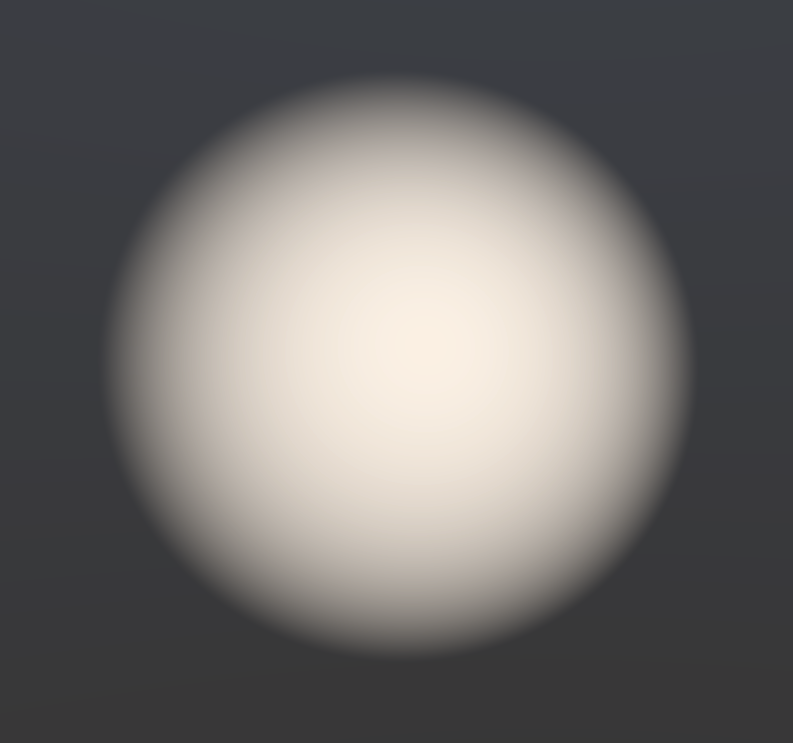
Ray marching illustration For now, we'll calculate our density using the distance from a sphere.
# Lighting and example density
# GLSL:

float SampleDensity(float3 pos) {
    float baseDensity = 10;
    float sphereRadius = 3;
    float3 sphereOffset = _sample; // example sphere at 0 0 0 
    float distToSphereSquared = dot(sphereOffset, sphereOffset);
    float profile = baseDensity * (1 - distToSphereSquared / sphereRadius);
    return saturate(profile);
}
float3 CalculateLighting(float3 pos) {
    float stepSize = MAX_LIGHT_DISTANCE / NUM_LIGHT_STEPS;
    float totalDensity = 0.0;
    float3 sample = pos;
    // Step towards the light
    for (int i = 0; i < NUM_LIGHT_STEPS; i++) {
        sample += LIGHT_DIRECTION * stepSize;
        float density = SampleDensity(sample);
        totalDensity += density * stepSize;
    }
    float transmissance = exp(-totalDensity);
    return LIGHT * transmissance;
}
Using this you should get a simple foggy sphere. Ray marching basics

Choosing a structure

Clouds aren't just simple primititives, so we need a way to store the density of clouds in a 3D structure.

There are multiple ways to store this data, and this is an important choice since there are different benefits and drawbacks to choosing a specific one.

One commonly used technique is:
2.5D Cloud maps
By using multiple layers of 2D textures, you can approximate the 3D clouds.
This is cheap to sample since it's only 2D textures and allows you to quickly get a full sky map and even blend between different types of clouds.

However, there is not much control over the actual 3D look of the clouds, and it doesn't look too good when going through the clouds without very high sample counts.

This technique can be great for a simpler background sky, but I'll be choosing a different approach that allows for more versatility.

Voxels
A way to overcome the drawbacks of 2.5D clouds is using voxels.
Voxels allow you to fully control the look of the clouds in a 3D structure and work well for both background clouds and clouds you can fly through.

- Sparse
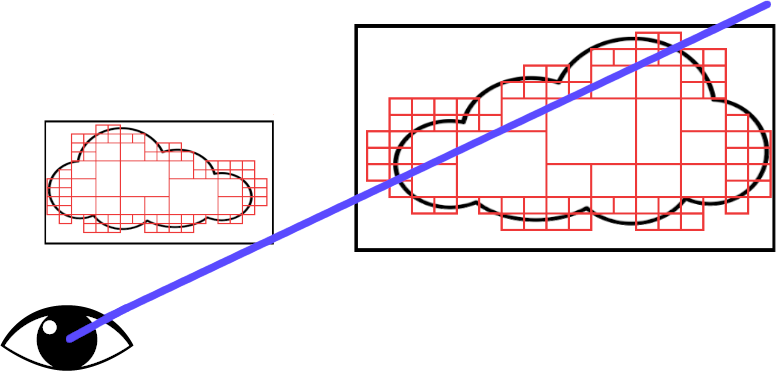
It might seem good to store these voxels in a sparse structure, i.e., either storing only the voxels where there are actually clouds, or using a tree structure to have smaller voxels where there is more detail.
Sparse voxel structure illustration This has a lot of benefits in memory usage, allowing you to store significantly more detailed clouds.
Using bounding boxes around clouds also allows you to skip sampling empty space.

- Dense
However, storing voxels in a dense structure (thus having a fixed grid of voxels) has some great benefits.
Sampling dense grids is faster due to not having to go through the indirection of going through the structure of a sparse grid.
The dense grid can also be used to store extra data such as cached and precomputed lighting, which would be harder to store and update in a sparse grid.

This increase in speed is, however, at the cost of having to reduce the resolution of the voxels due to the increased memory usage.

Implementation
For this implementation, I'll be going with a dense voxel grid.

For loading the voxel data, I recommend using OpenVDB, which loads sparse voxel data files and allows you to store these as dense grids.
This can then be loaded into a 3D texture and sampled in the raymarcher.
https://www.openvdb.org/

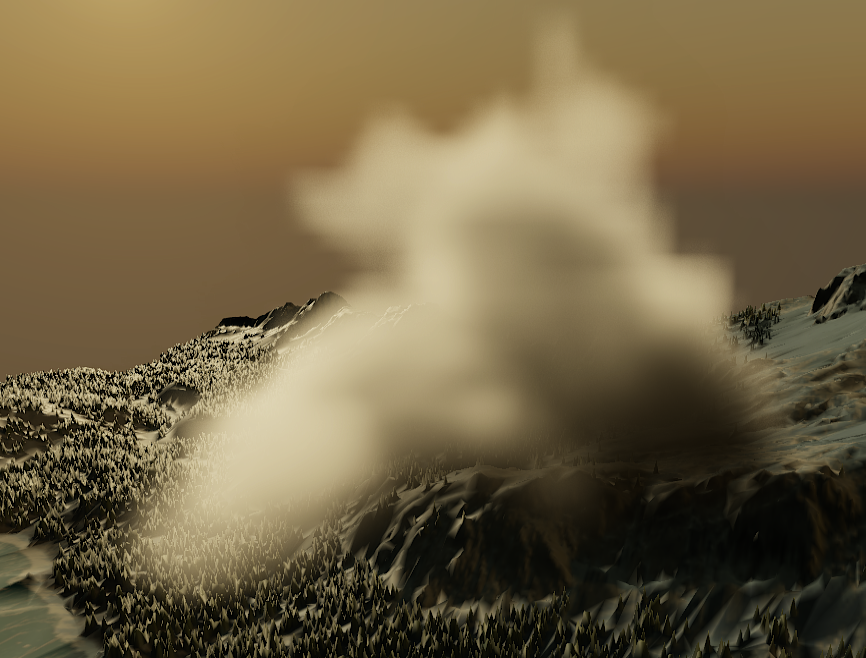
Sampling voxel data in our basic raymarcher from earlier:

Voxel sampling illustration

Shaping

As just mentioned, choosing a dense voxel structure limits the resolution of the grid. This means we lose a lot of finer detail in the shape of the clouds.

Luckily, there is a way we can get around this.
What we will do is use a higher resolution 3D noise texture to add detail and erode the smooth, low-detail base shape.

Profile

Since we already have a base shape of the clouds that we want to use, we cannot just add detail randomly but have to keep the shape in mind.
Just multiplying the base shape with noise would not achieve the right look, since clouds have uniform density in their center.

Instead, we just want to only erode/remove some of the density at the edges of our main shape.
To do this, we use our base shape as a density profile and make it have a gradient falloff at the edges.
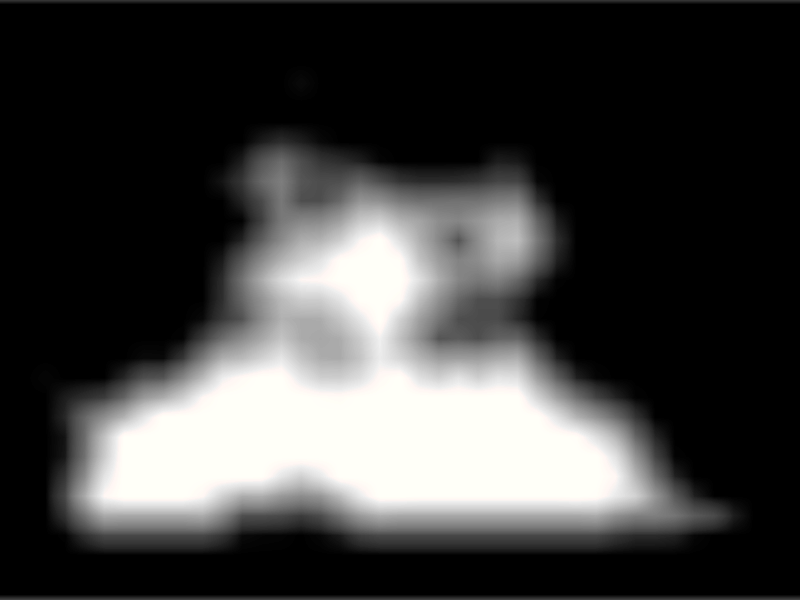
This profile has a range from 0-1.

A 2D slice of the low resolution density profile of a cloud

Cloud profile slice

Eroding

To erode only the edges of the profile, we use a remap function.

float Remap(float value, float inputMin, float inputMax, float outputMin, float outputMax)
{
    return outputMin + (value - inputMin) * (outputMax - outputMin) / (inputMax - inputMin);
}

By using the value of a noise texture as the minimum input range while keeping the rest from 0-1, it smoothly erodes the lower values at our gradient edge, while preserving the higher inner densities.

After eroding we can scale this final density to what we want, either using a uniform scale or an extra 3D texture.

Noise Texture

For the noise texture itself, we need noise that correctly resembles clouds.
For this I use the noise texture supplied by Nubis, which contains versions of alligator noise generated in Houdini.

The shape of clouds varies across different areas; in low density areas the noise is more low frequency, while in high density areas it's more high frequency.
The bottom of the cloud is usually more wispy versus the top, which is more billowy/fluffy.

To achieve this, the noise texture contains multiple channels with high frequency and low frequency billowy and wispy noise.
You can then blend between high and low frequency noise using the profile (possibly raised to a power to control the gradient).
You can use either the vertical position or an extra channel in the voxel data to blend between wispy and billowy noise.


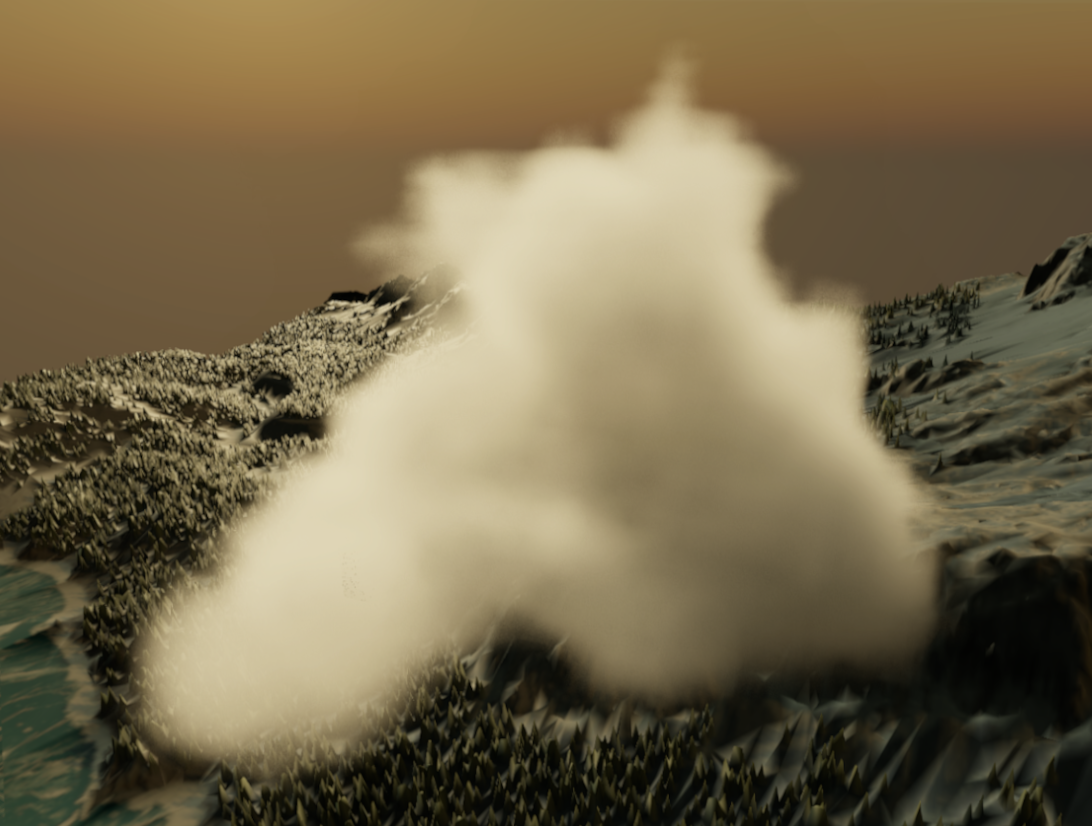
Final cloud comparison after applying noise based erosion, blockiness at the edges gets removed with more detail.

low resolution cloud vs uprezzed cloud

You can also move this noise over time to simulate wind.

Lighting approximations

The lighting in real clouds is not as simple as a straight line towards the sun/light source. In fact, there are more incoming sources and light bounces around the inside of the cloud.

Simulating this would be very expensive, but there are some good approximations that give us a more realistic look.

Phase

An important factor in lighting volumes is that they do not scatter light evenly in all directions; in fact, they scatter light significantly more forward.

This causes clouds between you and the sun to be way brighter than when looking at clouds opposite to the sun.

This factor can be calculated by the Henyey-Greenstein function.
It takes an eccentricity factor; lower values mean the light is more biased towards the incoming light direction.

// Phase function
float HenyeyGreensteinPhase(float inCosAngle /*the dot product difference between look and light direction*/, float inG /*The eccentricity*/)
{
    float num = 1.0 - inG * inG;
    float denom = 1.0 + inG * inG - 2.0 * inG * inCosAngle;
    float rsqrt_denom = rsqrt(denom);
    return num * rsqrt_denom * rsqrt_denom * rsqrt_denom * (1.0 / (4.0 * PI));
}
                    

This can be directly applied to the lighting.

light += CalculateLighting() 
       * HenyeyGreensteinPhase(dot(rayDir, LIGHT_DIRECTION), g /*0.2*/) <changed>
       * transmissance 
       * density 
       * stepSize;
                    

Ambient lighting

An important factor in lighting clouds is ambient light that comes from the sky.
This causes clouds to be more lit with the color of the sky when not directly illuminated by the sun, and adds more realistic shadowing since covered parts get less sunlight.

Ambient light coming from all directions, deeper and lower parts are more shadowed
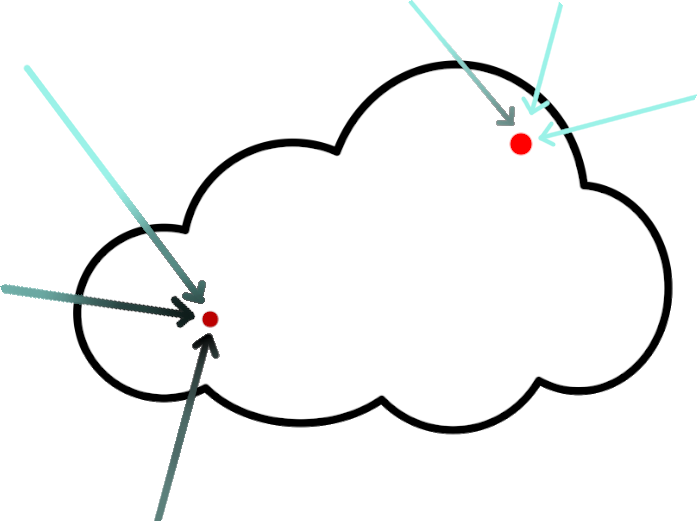
Ambient lighting illustration

It would be way too expensive or noisy to calculate this by shooting actual rays in "random" directions.

So instead, we use an approximation.
We can assume that most of the ambient light will come from the sky above since that is the brightest part of the sky.
Keeping this in mind, we can combine the entire sky into one upwards ray.

What we do is first combine the sky into one light value/color by integrating the sky hemisphere once.
I won't go over how to do this, but it can be done by either random sampling or spherical harmonics.
Alternatively, you can just pick a color that resembles your sky.

To approximate shadowing of the rays, we shoot a ray upwards.
Since this light is not directional, it is not affected by either phase or sun direction.
That means this upwards ray can be precalculated for a static grid, and since this data is already blurry by itself, it can be stored in a lower resolution grid.

Single ray approximation
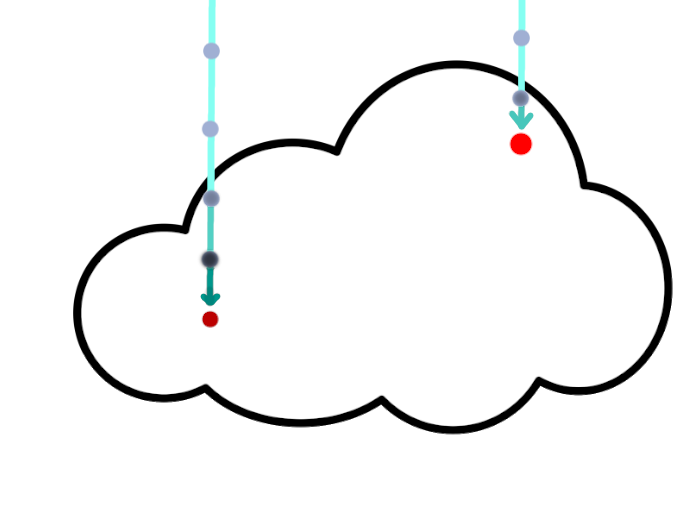
Ambient lighting illustration

To combine this all together, we weight the ambient lighting by not only this ray but also by how far into the cloud the sample is.
This is because the edges of the cloud receive more ambient light from around than the center of the cloud does. We can reuse the profile for this.

for(int i = 0; i < NUM_SAMPLES; i++) { // sample loop
...
    // Ambient approximation
    sampleLight += 
        saturate(pow(profile, 0.5) // here we use a slightly modified profile to change the falloff of ambient light at edges, 
                                    // this could also be a remapped distance field to the edge of the cloud, we get into this later 
        * exp(-GetSummedAmbientDensity(samplePosition))) // Summed density of the upwards ray, this can be a precalculated texture sample or an actual march.
        * (AMBIENT_LIGHT); // Light from the sky, could be a single color or a preintegrated sky light
    ...
    totalLight += sampleLight * transmissance * sampleDensity * stepSize;
    ...
}
    

Comparison, you see mainly that the parts away from the sun are not unrealistically dark anymore
and shadowed parts (the underside) stay shadowed
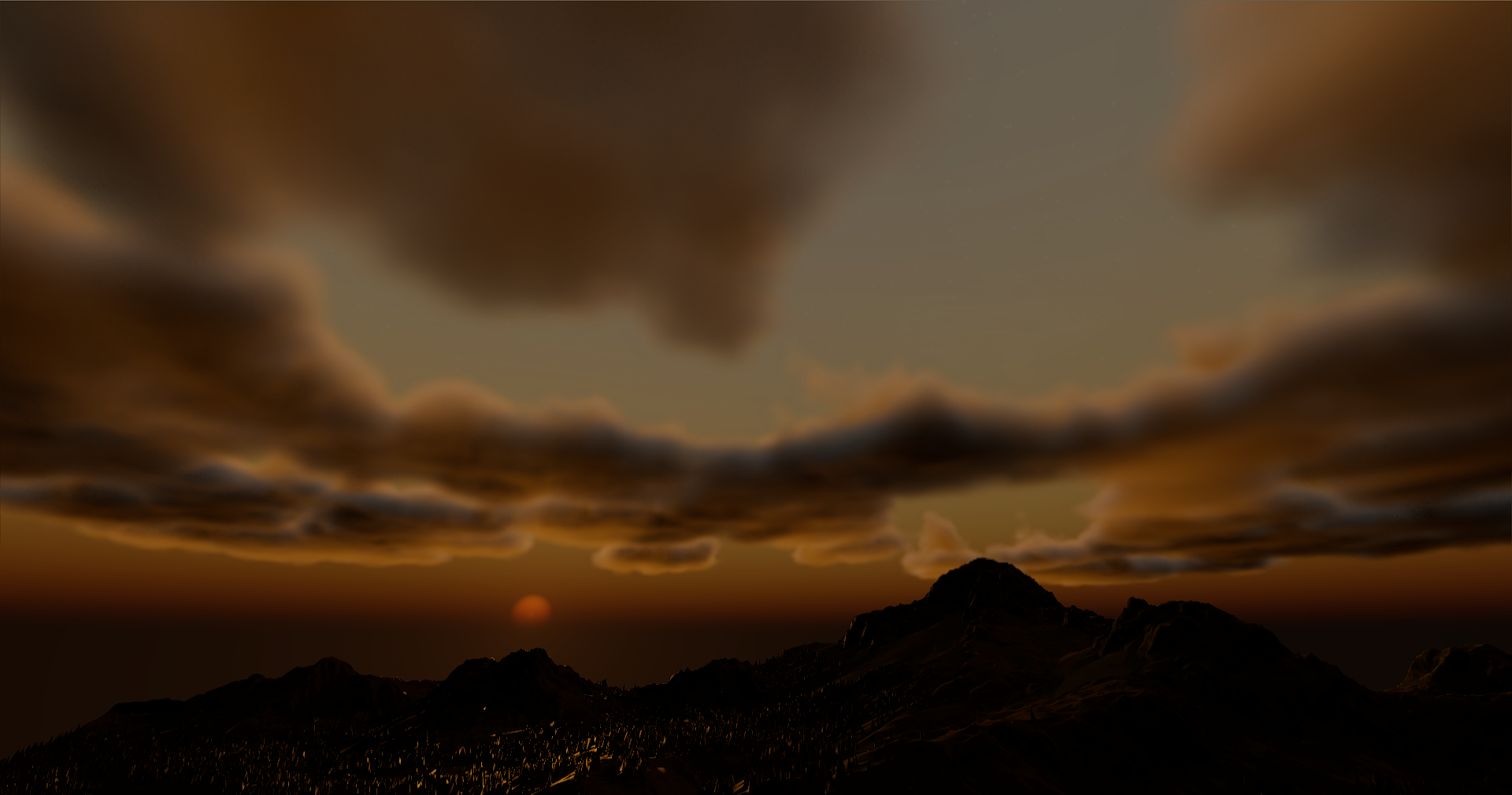
No ambient lighting vs Ambient lighting

Multiple in-scattering

Clouds do not only receive sunlight directly from the source.
Light also scatters around the inside of the clouds and can hit our sample indirectly.
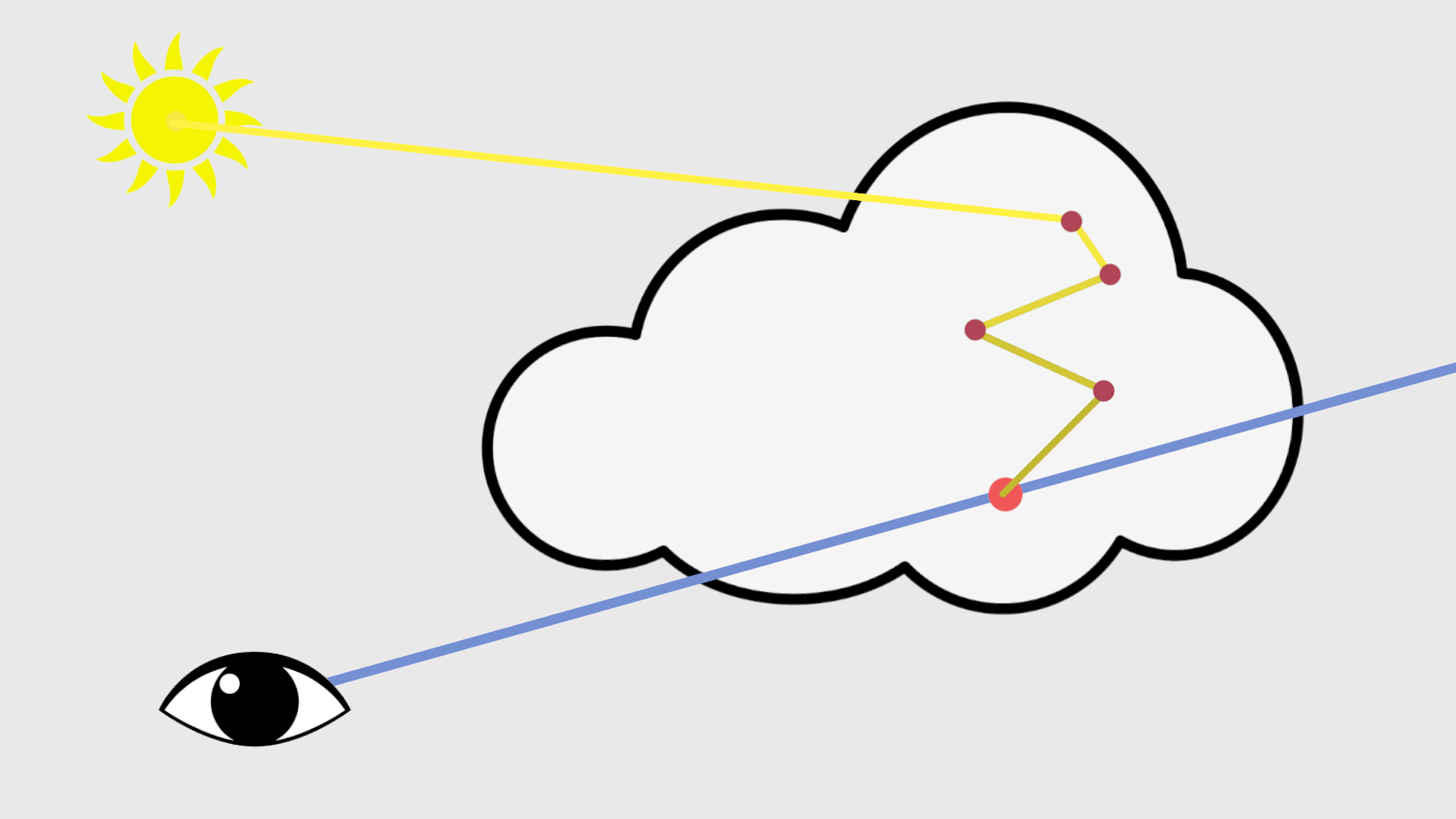
Multiple scattering visualization

This would also be too expensive to calculate, but we can approximate the results.
The main effect that results from multiple scattering is that the inner parts of the clouds become brighter.

This is because the inner parts have more cloud around them to scatter light from.
We also have to take into account the phase (so the angle to the sun) here since the scattering is still biased towards the light direction.

The approximation is not too accurate but gives a good-looking result and is very cheap. This is not too bad since the effect of direct lighting is significantly stronger.

float InScatteringApprox(float _baseDimensionalProfile, float _sun_dot, float _accumulatedDensity)
{
    //                                This accounts for the phase     // how far inside the cloud, (should also use a distance field but this is fine for now)
    return exp(-_accumulatedDensity * Remap(_sun_dot, 0.0, 0.9, 0.25, Remap(_baseDimensionalProfile, 1.0, 0.0, 0.05, 0.25)));
}

// In the march loop
    ...
    // March towards the sun adding up density. 
    float inSunLightDensity = DirectLightMarch();  <changed>
    //                             // not using uprezzed profile 
    float lightVolume = InScatteringApprox(1 - baseProfile, sunDot, inSunLightDensity);  <changed>
    sampleLight +=  
        lightVolume  <changed>
        * HenyeyGreensteinPhase(dot(rayDir, LIGHT_DIRECTION), g/)
        * SUN_LIGHT;
    ...
    totalLight += sampleLight * transmissance * sampleDensity * stepSize;
    ...
    

Comparison, you see that the inner parts of the cloud are significantly brighter.
You can also see inner edges in the middle of the cloud be slightly darker adding detail.
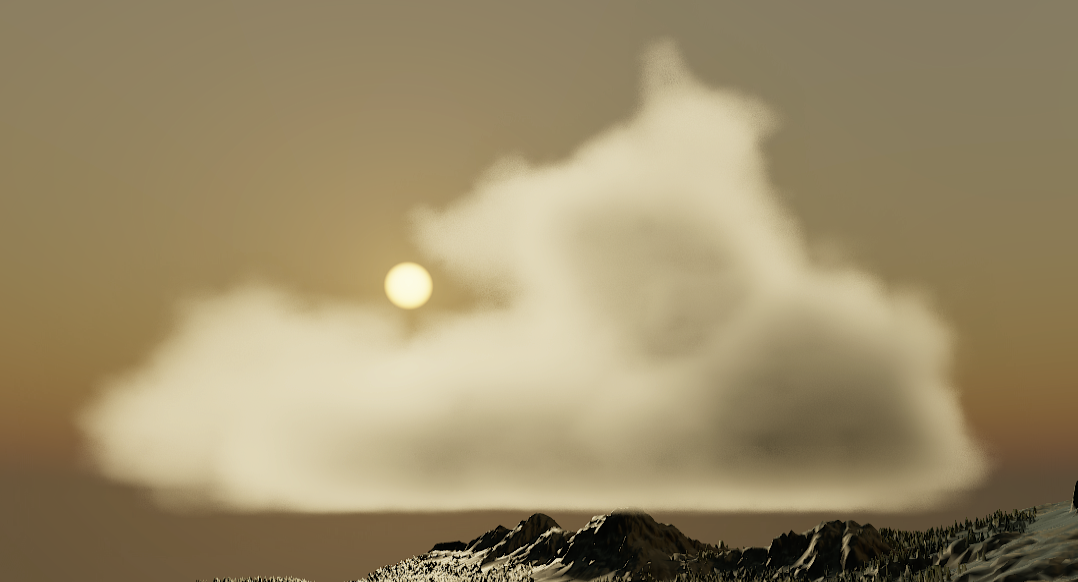
No multiple in scattering vs with multiple in scattering

Adaptive sampling

Now we have a good-looking cloud renderer, but it can still be quite expensive.
We have to take a lot of samples to get a good result; otherwise, we get banding or a very short render distance.

To get around this, we can use some adaptive sampling techniques.

Random jitter

An easy way to reduce banding from lower sample counts is to randomly sample instead of using fixed steps.
This removes banding but adds noise.

Random jitter illustration

This noise can be reduced by accumulating multiple frames.
This is done by reprojecting the old frame to the new one.

I won't go into detail on how to do this, but the basis is to project a 3D hit back to the screen to get the previous screen position.
Since clouds don't have an actual "hit" position, I use a position that gets updated in the march with a density maximum, so it will be somewhat deeper into the cloud.

float3 reprojectionHitPosition;
...
    // march Loop
    ...
  // Jitter
    float3 jitterPosition = samplePosition + RandomFloat() * stepSize;
    samplePosition += stepSize; // Keep track of steps without jitter.
    float sampleDensity = SampleDensity(jitterPosition); // Sample with jitter
    ...
  // Reprojection
    if (accumulatedDensity < TRESHOLD) {
        reprojectionHitPosition = samplePosition;
    }
    ...
// After march
float2 prevScreenPos = WorldToScreen(reprojectionHitPosition, prevView);
float3 history = historyBuffer.Sample(reprojectionHitPosition);
float3 result = lerp(history, currentResult, weight); // weight based on camera motion and difference, must be relatively high since clouds dont reproject accurately

This allows us to already reduce sample count and get similar results.

Sphere tracing

One of the most important optimizations is adaptive step sizes.
Instead of sampling super accurately at every step, we should increase step sizes in less important areas.

The least important areas are outside the clouds, so we want to skip these areas as quickly as possible.
To do this, we use sphere tracing: we store the distance to the nearest cloud in every voxel and use that as the step size.

Every step has an imaginary sphere to the closest point, and uses that as the step size. We switch to a fixed size inside the cloud.

Sphere tracing illustration

This distance field is precalculated and put into a separate 3D texture.
So if you are outside the cloud, you can skip sampling density and calculating lighting.

Since this distance field is calculated using the base profile (which we erode when sampling), it will never miss the cloud's edge, which has the most important contribution to the final color.

Adaptive minimum step

On top of the sphere tracing, we can also add a changing minimum step size.
Further from the camera, we do not need as much detail, so we can increase the minimum step size with distance.

More accumulated density blocks light, so samples behind dense areas are also less important. Therefore, we also increase the step size based on accumulated density.

So when sampling, we get:

// Ray march loop
...             
    float distanceField = SampleDistanceField(samplePosition); // Dont use the jitter position here
    
    stepSize = max(distanceField, minStepSize);
    if (distanceField <= 0) { // this means we are inside the cloud
        stepSize = minStepSize; // Swtich to minimum step

        ... // Lighting and density calculations

        minStepSize += STEP_INSCREASE_OVER_DENSITY * sampleDensity;
    }

    samplePosition += rayDir * stepSize;
    minStepSize += STEP_INCREASE_OVER_DISTANCE * stepSize;
...

Further optimizations

There are some further optimizations that can be made, which I will not go into detail about but will list:

Caching Direct Lighting

Since we use voxels, we can calculate direct lighting per voxel in a separate pass.
Then in our main pass, when doing the light ray after some (~2) real light sample steps, we can sample the cache.

This cache can be lower resolution than the actual voxels since the light is blurry by itself.

Compression

Since our distance field is sampled a lot, it can benefit from compressing the texture using, for example, block compression.
But an important factor in this is that the value stays at least lower than the original to avoid overshooting.

Upscaling

Since clouds are inherently fluffy and blurry, we can render them at a lower resolution and upscale them to our screen.

Showcase

Video of my implementation:

Running on a RTX 4060 Laptop GPU

Source code/Implementation

An open implementation of this code is available on GitHub.
This includes the renderer as a library and a demo application.

Github

Additionally I also provide a Houdini asset to generate clouds and/or their SDF.

Houdini Asset
Back to Articles

References

Here are the references that I used while researching and creating this article.

Nubis talks from Guerrilla Games (main reference):
- Synthesizing realistic clouds for video games (Summary of their techniques)
- Nubis3 (About their voxel technique)
- Nubis: cloudscapes in a nutshell (More about cloud maps)
- How to Decimate your textures – BCn compression tricks in Horizon Forbidden West (SDF Compression for further optimization)
Raymarching basics:
- Scratchapixel: Introduction to volume rendering
Raymarching structures:
- OpenVDB
- Jasper de Winther @ Traverse: Intro to rendering of animated volumetric models